We all know that IT professionals speak their own language. It can be frustrating when an IT person casually recommends a simple fix and you still have no idea what they are talking about. I see this happen many times a day when an IT person says this, “that’s a browser issue, just clear your cache.” So let’s make life easier for everyone and translate exactly “how to clear your cache”.
What Does Cache Mean?
This simply means that the browser you are using is presenting a saved version of the webpage. This happens because that saved version of the page may load faster than actually loading the page. Some websites are developed to only show cached versions of their pages because it is faster. We all know that nobody wants to wait for a slow website. This can cause confusion when you are trying to update an event or a blog post and the page you are updating does not appear to be changing.
Clearing the Cache
Now that we understand what cache means and why it is important, let’s talk about clearing the cache. Honestly, the easiest way to clear a browser cache in every browser is to press Ctrl + Shift + Delete at the same time.
Clearing the Cache in Google Chrome
Clearing the cache in Google Chrome can be done in 4 easy steps.
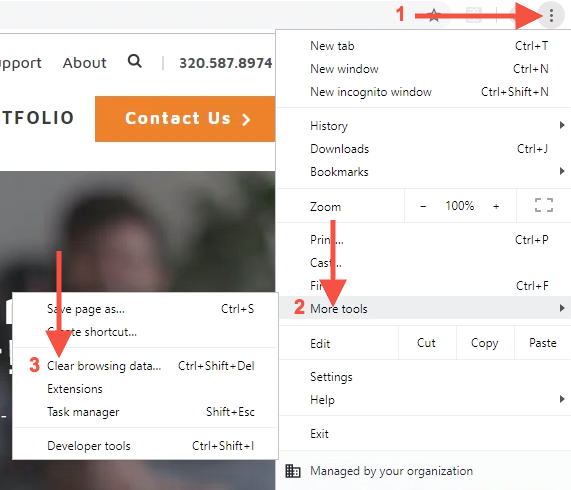 Click on the three dots in right-hand corner (this is the menu).
- Hover over “More Tools”.
- Click “Clear Browsing Data”.
- Select “Cached images and files”.
- Click “Clear Data”.
When you refresh the page you were viewing, the cache will be cleared.
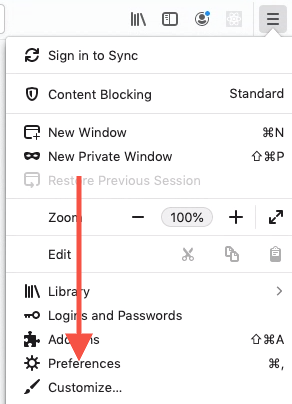
Clearing the Cache in Firefox
- Click on the menu in the right-hand corner.
- Click “Preferences” or “Options”, then “Privacy & Security”.
- Under “Cookes and Site Data” click “Clear Data…”.
- Check “Cached Web Content” and hit “Clear”.
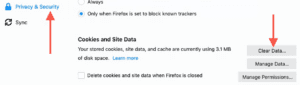
Once you refresh the page, the cache will be cleared.
Clearing the Cache in Internet Explorer
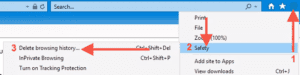 Select the cog menu item.
- Select “Safety”.
- Select “Delete browsing history…”
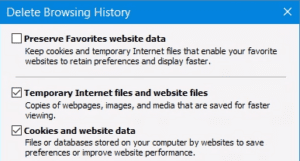 Deselect “Preserve Favorites website data”, then select “Temporary internet files”, & “Cookies and website data”.
- Click “Delete”.
As with all other browsers, once you refresh the page the cache will be cleared.
Clearing the Cache in Edge
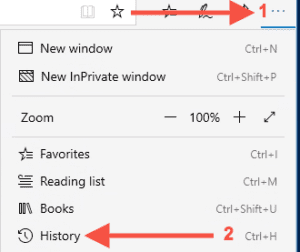 In the top right-hand corner, select three dot icon (this is the menu).
- Click “History”, then select “Clear all history”.
- Select “Browsing history”, then “cached data and files”.
- Click “Clear”.
After you refresh the page, the cache will be cleared.
Clearing the Cache in Safari
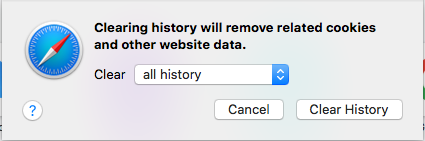 From the menu, click “History” then “Clear History…”.
- Select “All history” then hit “Clear History”.
After you refresh the page or completely close out of Safari and reopen it, the cache will be cleared.