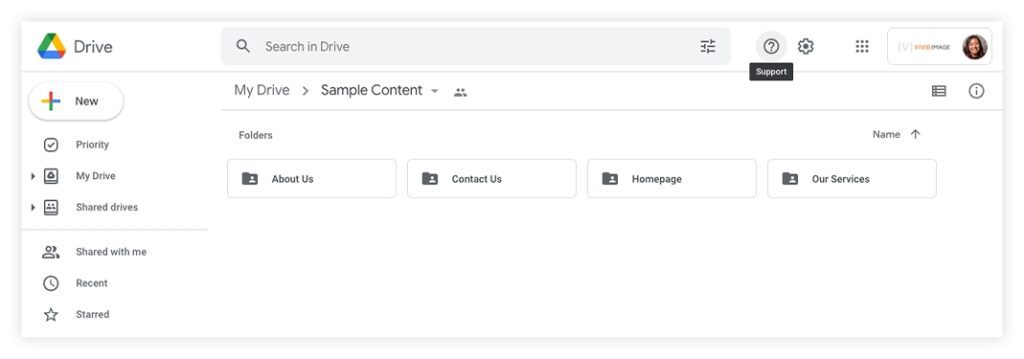
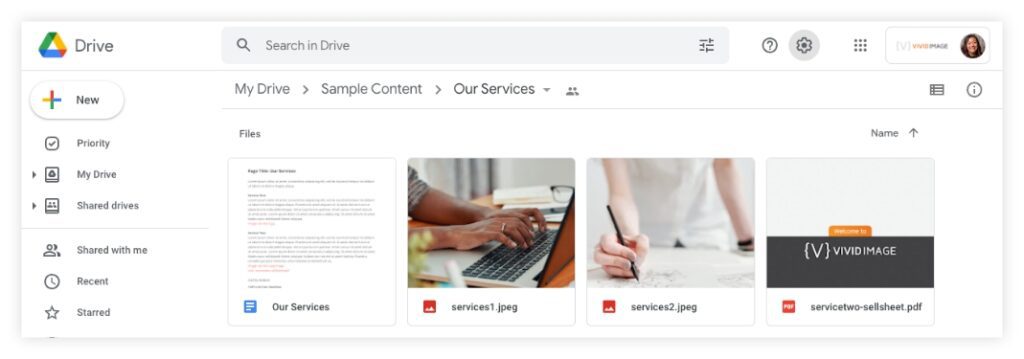
As we work together to develop your new website, you may be asked to send new or updated page content to us.
We want to make this process as painless and efficient as possible. Whether it’s five pages or your whole website, here are some tips on how to send us your content.
How to set up a document(s):
- Use Microsoft Word or Google Docs. This allows us to easily copy and paste content from the document into your website.
- It can be difficult to extract text from PDFs, emails, or handwritten documents and may require extra time in order to do so. These may come back to you with a request to send them via a Word or Google Doc.
- Try to make sure that the content is final content (or as close as you can get it). This helps keep us within budget and timeframe.
- Send to anyone who needs to give input and review prior to sending to your Account Director.
- Start new webpage content on a new page within your document or set it up as a separate document.
- Label the page or document clearly as to what webpage the content is for.
- Keep the document(s) as simple and consistent as possible. Leave the designing to us – that’s what what we do best after all!
- Use one color for all your content in the document and one other color for notes such as website links or image file names.
- Don’t send images within your content document – see Images section below. Just label clearly within the document what image(s) belong the page.
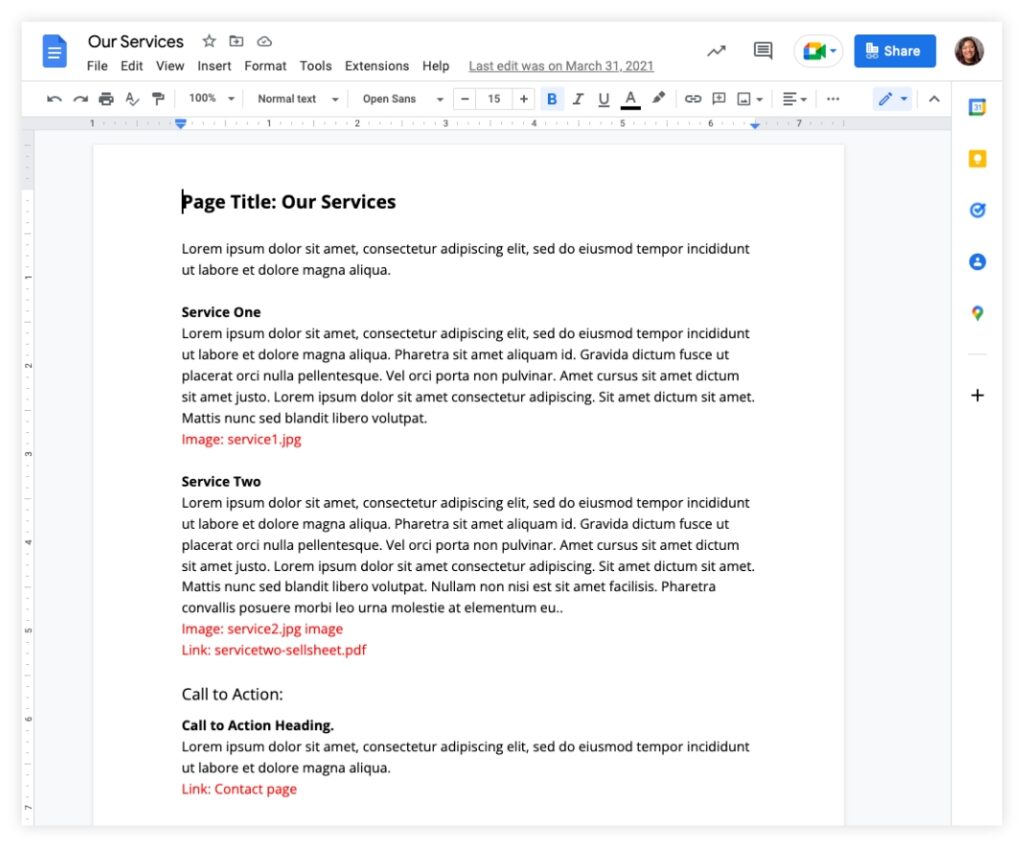
Download the Word Document below if you want a starting point. (You can open this up in Google Docs, too.)
How to set up a document(s):
- Label all images appropriately.
- Best practice: Label images based on what page they should be uploaded to. If this isn’t done, we may be asking you for guidance and clarification.
- Send images in as high resolution and size as possible in either JPG or PNG format.
- Remember: Images can be made smaller, but they can never be enlarged without losing quality and becoming blurry.
- Send all images as their own file.
- Do not send all images gathered together in a Word or Google Doc or in the body of an email; attached them instead. If image files are too large to send via email you can use Dropbox or Google Drive.
- Be aware of image orientation based on where they are going on your website.
- Homepage widgets, sidebar widgets, and custom post types usually have a specific shape whether it’s landscape, portrait, or square.
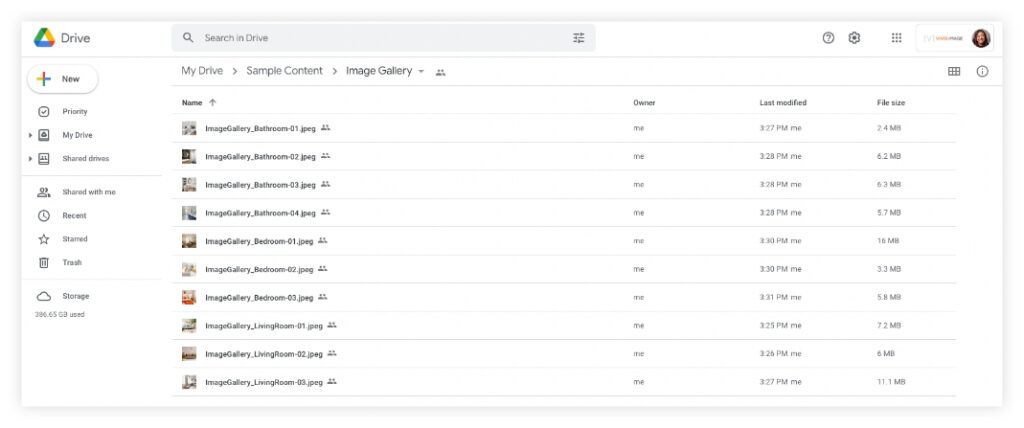
Suggestions on how to send all content and images:
- Email: this can mean sending likes to Google Docs, attached Word documents, images, and any additional files such as PDFs.
- Google Drive or Dropbox: Depending on how much content you have, it may be easiest to set up a folder within one of these two services.