Add an Event
To set up an event, regardless of whether you’re a Standard or PRO user, navigate to the Dashboard of your site and select Events → Add New. You’ll notice that this looks very similar to the page you see when adding a regular post.
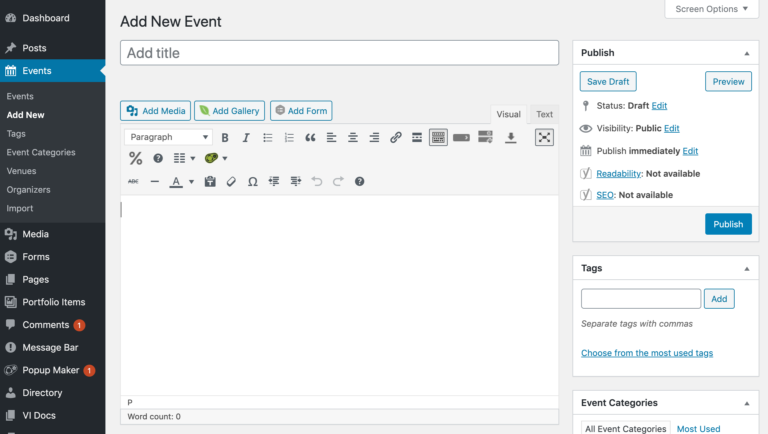
Title, description, tags, categories, and the featured image operate identical to a regular blog post.
- Assign a featured image to the event
- Add a tile of the event
- Add your content about the event
- Select the category you would like your event to be associated with
The Event Calendar Section
Time and Date
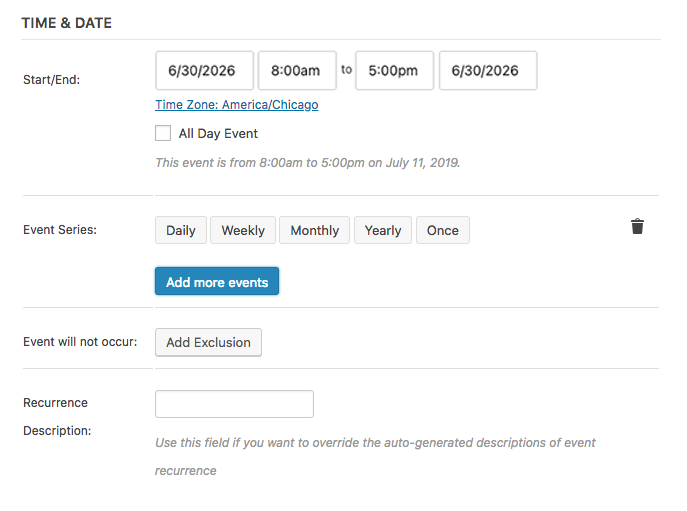
Once you begin adding event details, the first thing you’ll need to decide is whether or not this will be an All Day Event. If it is, hit the checkbox; you’ll see the start/end time fields disappear upon doing so. If it isn’t an all-day event, leave this field unchanged.
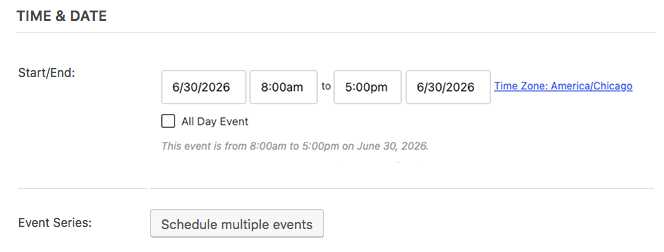
Select the Start Date/Time. Start date will default to today and start time/end time will default to 8 a.m. / 5 p.m. respectively. However — assuming you haven’t set this event as all day — you can change these to whatever fits your event criteria using the dropdowns.
If you’re a PRO user, you’ll also see a dropdown for “Recurrence.” If that’s the case, leave “Recurrence” set to “None” for now.
Event Location
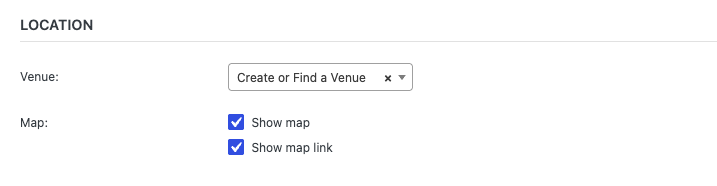
Event Location will determine the venue for your event. Use a saved venue from the dropdown or create a new one on the spot. If you do create a new one, it’ll be saved in the dropdown for all future events you create. It’s also worth noting that you can add as many or as few venue details as you see fit; whether it’s a specific address or just a country, the plugin will accommodate your needs. You can also leave these fields entirely blank if you don’t want any venue information to display. However, you will need a full address if you want to use Google Maps options, Map View, and/or Location Search.
If you check the “Show Google Maps Link” box, it will include a nice button that links your readers to view the venue information at maps.google.com. If you check the “Show Google Maps” box, a map it will embed into the events page directly. You can include one, both or neither of these on an event-by-event basis. Keep in mind these options will only show if you have Enable Google Maps checked in the Settings.
Organizers
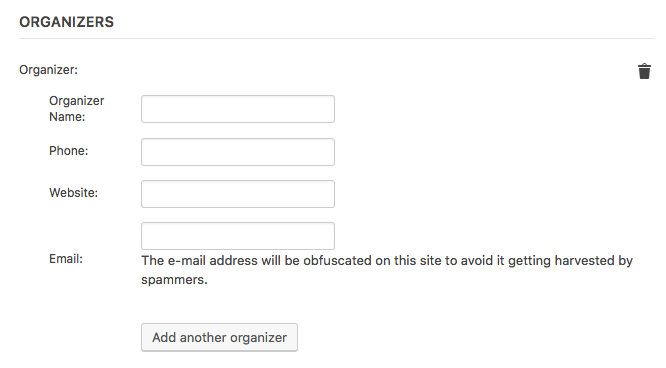
Event Organizer details are similar to the venue details we added above. These focus on the person putting the event together. Once again, you have the option to pick from existing organizers via the dropdown or to add a new one using the fields available. Add as many or as few organizer details as you wish.

Website
Event Website allows you to enter a URL if the event itself has a separate website. Otherwise, you can leave it blank.
Cost
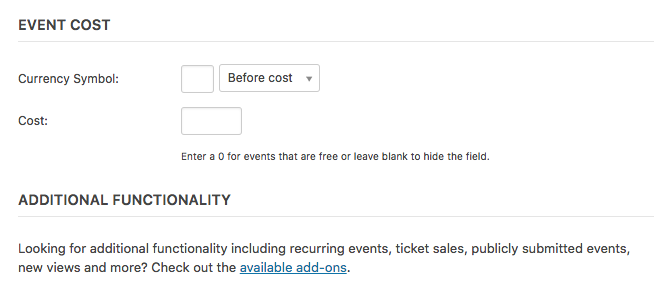
Event Cost allows you to enter the price per person if the event is not free.
Additional add-ons are available. *If you leave any of these fields blank they will not appear on the page.
Adding Additional Fields (PRO only)
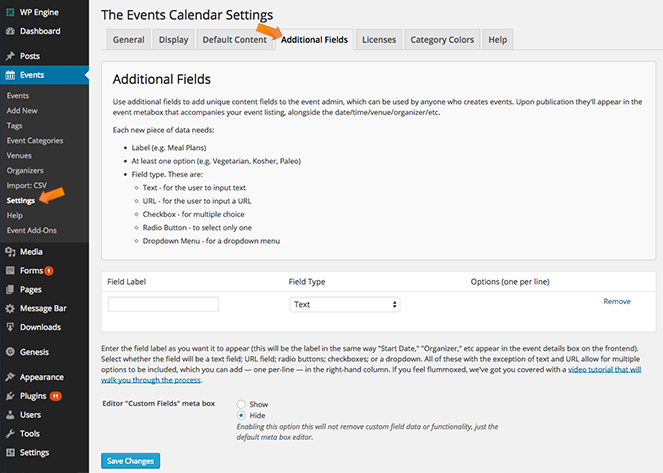
Remember that additional fields are a PRO-exclusive feature. So, as with recurring events, you can skip this section if you’re using only using The Events Calendar. If you are using PRO, you can read on for a walkthrough of the process. To add additional fields to your events: Navigate to Events > Settings – Click the “Additional Fields” tab.
You’ll see three areas to configure: Field Label, Field Type, and Options (one per line).
The Field Label determines how this attribute appears on the frontend. If you’re aiming to include a “Host” in your events, for example, you’d include the word “Host” here. No need to add the separator colon; the system will throw that in automatically upon publication.
The Field Type determines what type of field this will be.
This includes:
- Text Field: event admins can enter whatever they want
- Radio: pre-populate the options and event admins can select one of them
- Checkbox: similar to Radio except allows event admins to pick multiple selections instead of just one
- Dropdown: pre-populate the list with options and event admins can select one from a dropdown that appears on the event creation screen
Select a Field Type
Choose your attribute field type. Fill in the options with one per line (you can edit this later).
Add Multiple Fields
Click “Add Another” on the far right side to add more custom fields to your list.
Save Your Changes
Save your work before switching tabs, or your new custom fields will be lost.
Any custom attribute data added on the Settings page will be available to all users for all events that are created going forward. If you ever want to remove an attribute from the site, which will remove it from any existing events it may be assigned to, just come back to this Settings page and hit the “Remove” link.
Setting Up Recurring Events (PRO only)
Recurring Event settings allow you to create a new event and have it recur daily, weekly, monthly, yearly, or custom. It’s really handy for things like meetings, classes, and more. If you want to get in-depth and use the Custom Recurrence options, check out this guide: A Detailed Look at Custom Recurrence.