Updated 1/9/2026
We love Pixels!
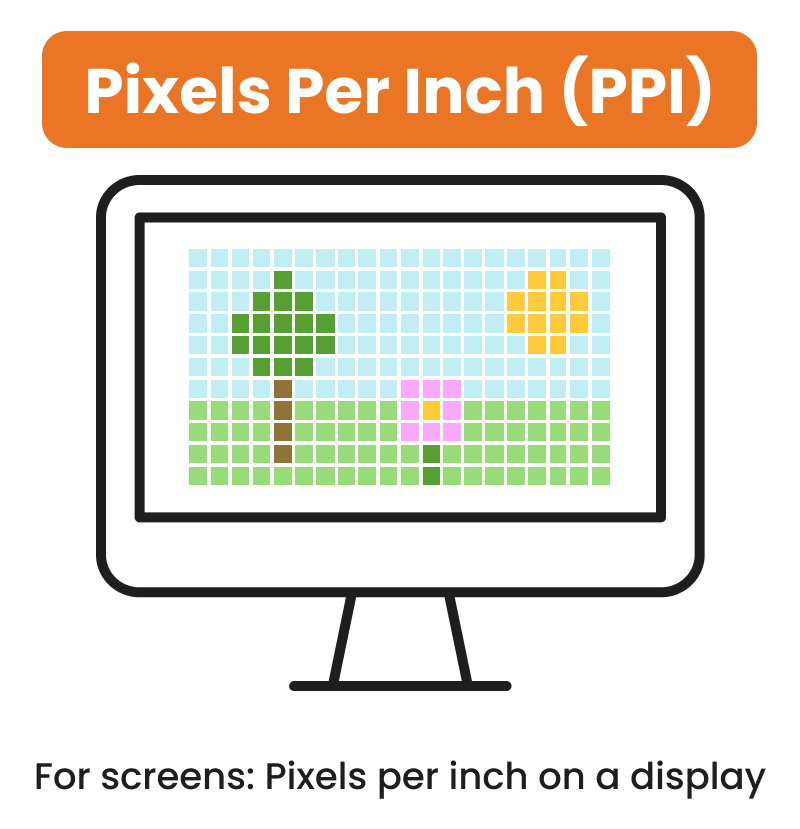
When discussing images for your website, you’ll often hear us reference pixels. Pixels are the standard measurement used for digital images. These are the smallest building blocks of digital images. Every photo you see on your computer or phone is made up of these very tiny colored squares, and if you zoom in on a picture, you’ll start seeing these small squares.

Pixels on Screen – PPI for Digital
Pixels per inch (PPI) tells us how many pixels there are in each inch of a screen. The higher the PPI, the sharper and more detailed the image will be.
A 4K screen has more pixels packed into the same space as a lower resolution screen, making the images displayed more crisp and clear.
Dots on Paper – DPI for Printing
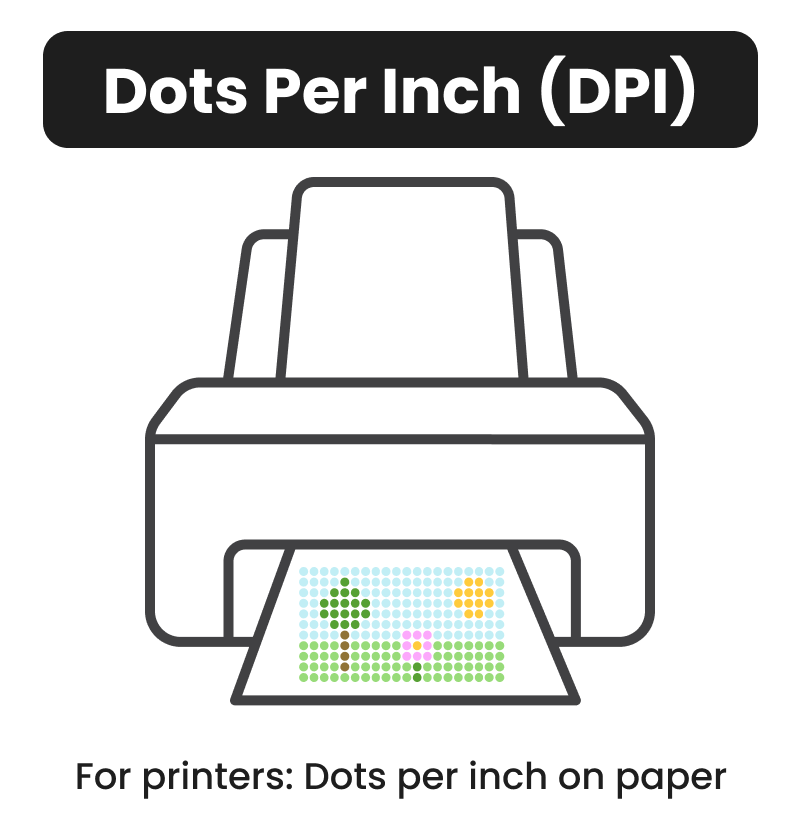
Dots per inch (DPI) is a term only used in print. It measures how many tiny dots of ink there are in one inch of paper. The more dots per inch, the more detailed the image printed will look.
Why This Matters
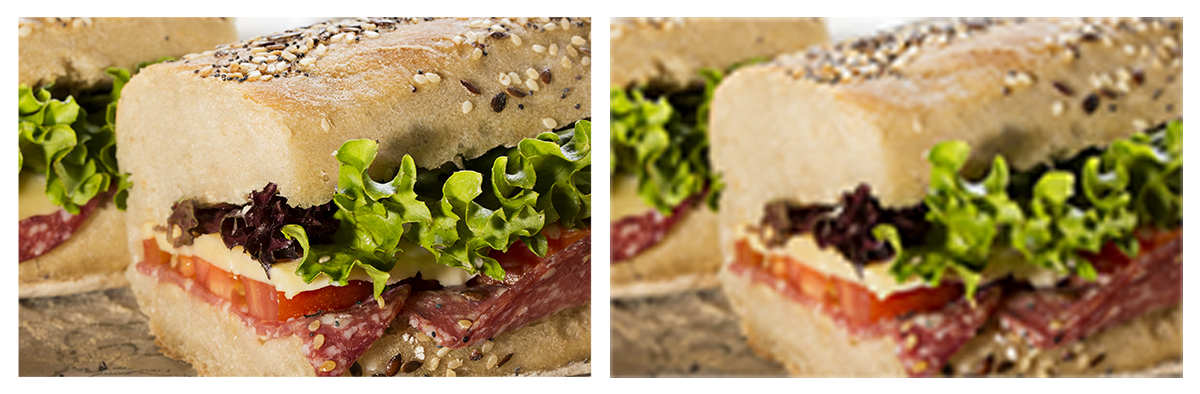
When you save a photo for digital use, it’s typically sized in pixels – 1500×1000 at 72 ppi for example. While this photo looks great on your screen, that same photo when printed, may look blurry and unfocused. This is because screens and printers treat image size differently.
A Little Bit of Math
Let’s take that same 1500×1000 picture and figure out the best size to print it at so it is crisp and clear like your screen.
If you want to print this image at 300 DPI, you would divide the pixels by DPI:
- Width: 1500 / 300 = 5 inches
- Height: 1000 / 300 = 3.33 inches
This means your image would print high quality at 5in x 3.33in.
If you were to try and enlarge this image to 11 in x 8.5 in, the printer would be forced to spread that same amount of information over a larger space. This leads to a blurry, less crisp print. An image that looks sharp on your computer screen, but doesn’t have enough pixels for the size you want to print, won’t print sharp.
The same concept applies when you try to make that 1500×1000 image bigger to 1920×1080. You’re forcing the pixels to spread out over a larger space. The results are blurry and unfocused. We don’t want the computer or the printer guessing what colors to put in these extra pixels we just added.
This is why we ask you for the highest quality images you can provide. Images are easier to adjust for the web than they are to enlarge for print. Once an image is resized smaller than it’s original dimensions, you cannot reverse and make it larger without a loss of quality.
Pixels
- Used on computer/device screens
- Affects: Image size and detail on digital platforms
Pixels Per Inch (PPI)
- Screen displays
- Affects: How many pixels are in one inch on a display
Dots Per Inch (DPI)
- Printers and printed materials
- Affects: How many ink dots are printed per inch physical material
Remember
Simply increasing the DPI of an image improves the quality. If you don’t have enough pixels to start, increasing the DPI won’t add detail.
It is important to always keep the higher resolution version of your images on hand. You never know when you may actually need something you thought was only going to be used on your website for a brochure or flyer.
Need More Help?
If you are working on a project with us at Vivid Image and looking for some photos to use, we’ll be happy to provide you with they kind of photo needed for the project so your company and brand always looks GREAT!
You may also be interested in “What is a Vector Image?” or our handy guide on understanding all the image file formats.